Failed while trying to add a trigger
-
Hi,
Hopefully you can help me. I am trying to use triggercmd to trigger a couple of commands on my Raspberry Pi 3 via Alexa. I actually got one of the commands working at one point but was having some trouble with the syntax of the other. Anyway, after a few attempts I worked out the syntax but whenever i try to upload the commands i get the "Failed while trying add a trigger" error.
Looking at the machines in Computer Management the machine is listed, but there are no triggers.
I have tried deleting my machine from the triggercmd computer management view and re running triggercmd from the prompt. When i enter the token the machine re-appears in the computer management view so machine registration seems to work.
I double checked the commands.json file and there were no spurious commas, the last line had no comma. I got two "Failed to add..." errors - which matched the number of triggers i had (both background). To try to rule out my json, I copied the default file, with the 4 triggers in (3 background and 1 foreground) and re ran the installdaemon.sh. Again everything seemed ok but checking the status (via systemctl status triggercmdagent) I can see 3 "failed while trying to add a trigger" errors, probably corresponding to the 3 background triggers it is trying to use. As a final attempt i tried uninstalling the software (via the removedaemon.sh script, removing the machine from the computer management page, then reinstalling, again I get the 3 errors.
To me this points to an error on the server rather then the client, but aside from deleting a machine, it is somewhat of a blackbox to me.Can you think of anything else i can try?
Thanks
-
@markw, if you bare with me, we'll figure this out. I my theory is you might be editing commands.json in your /home/pi/.TRIGGERcmdData folder but the background agent is using the /root/.TRIGGERcmdData folder. Can you check that?
When you run systemctl status triggercmdagent, it should give you output like this. Notice it's running with /root/.TRIGGERcmdData as a parameter. That means it's using the commands.json from that folder too.
root@garagepi:~/.TRIGGERcmdData# systemctl status triggercmdagent ● triggercmdagent.service - TRIGGERcmd Agent Loaded: loaded (/etc/systemd/system/triggercmdagent.service; enabled; vendor preset: enabled) Active: active (running) since Fri 2019-09-20 16:17:03 UTC; 2 weeks 0 days ago Main PID: 273 (node) CGroup: /system.slice/triggercmdagent.service └─273 node /usr/share/triggercmdagent/app/src/daemon.js --run /root/.TRIGGERcmdData -
Hi Russ, Thanks for the quick reply.
It is the commands.json in /root/ that i am editing. When I edited it to contain the two background commands I want, I got 2 errors. When I did a fresh uninstall and install, so the commands.json in /root/ had 3 background commands, I got 3 errors. This is my as output as my PI is currently:
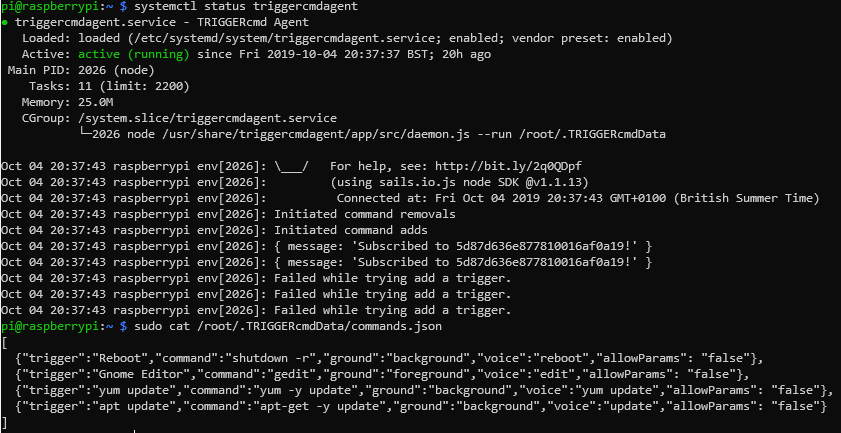
Thanks again for taking the time to help with this.
-
@MarkW, I'm confused because you said you edited the commands.json, but the one you cat'ed out has the default commands in it.
Here's one thing that could be wrong. I don't know if you know you need to "escape" any forward slashes with backslashes.
Here's an example for when the script is /root/t.sh:{"trigger":"touch","command":"\/root\/t.sh","ground":"background","voice":"t","allowParams": "false"},You could try adding some debug output in the code block that executes when you get that "Failed while trying to add a trigger." error.
If you want to try that, edit the addCmd function in the /usr/share/triggercmdagent/app/src/agent.js file and add the two lines I added below (I marked them with <--- Add this line).function addCmd(trigger,voice,voiceReply,allowParams,token,userid,computerid) { // Configure the request headers.Authorization = 'Bearer ' + token; options.headers = headers; options.url = urlprefix + '/api/command/save'; options.method = 'POST'; options.form = {'name': trigger, 'computer': computerid, 'voice': voice, 'voiceReply': voiceReply, 'allowParams': allowParams }; // Start the request request(options, function (error, response, body) { if (!error && response.statusCode == 200) { // var computerid = JSON.parse(body).data.id; console.log('Added ' + trigger); } else { console.log(error); <--- Add this line console.log(JSON.parse(body)); <--- Add this line console.log('Failed while trying add a trigger.'); } }) }Then run systemctl restart triggercmdagent to pick up your change.
Then run journalctl -u triggercmdagent to view the full output. -
Hi,
What i tried and failed to explain was I did edit the commands.json, but that was failing, so to rule out my changes I reverted to the default commands.json.
I added the log lines you suggested and got the following output (at the end of the journalctl command):
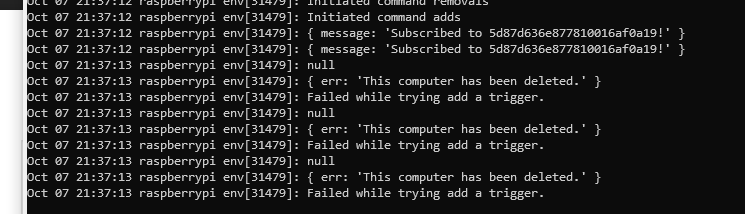
I went back to the computer management portal and my computer was still listed. I wanted to delete and re-register the computer, so to do that I:
- deleted the computer from the portal
- refreshed the page to verify it had gone
- stopped the agent via sudo systemctrl stop triggercmdagent
- re-ran triggercmdagent
- re-entered the token
- made sure the computer was now listed in the Computer Management, which it was
- restarted the service via sudo systemctl start triggercmdagent
- checked the output via systemctl status triggercmdagent
and got the same error:
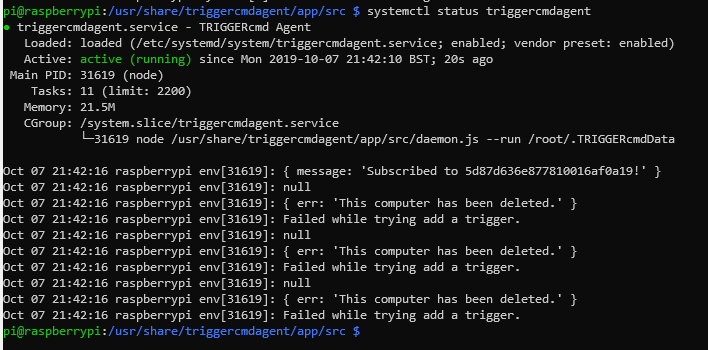
I am not sure why the service believes the computer has been deleted when it was registered in this same session only a minute or so before.
-
@MarkW, for some reason it seems to be trying to use the old computer's ID, not the new one. I tried to reproduce this issue and I couldn't, but I'm running the latest version of the agent. Maybe that's the difference.
When you re-ran triggercmdagent, did you run this first?
sudo su -That would make sure you're root and your home dir is /root.
Also I suggest trying this:
- Stop the agent again.
- Delete the computer from the website again
- Run sudo su -
- Backup your commands.json file.
- Delete your whole /root/.TRIGGERcmdData folder (including computerid.cfg)
- Run triggercmdagent and paste in your token.
- Start the agent.
- Profit (hopefully)
-
Hi Russ,
The problem, as you suspected, was that I did not run sudo su -. I followed the steps you laid out in your previous post and did indeed profit :).
Thanks for your help.
-
@MarkW, awesome. I'm glad that worked.

Hello! It looks like you're interested in this conversation, but you don't have an account yet.
Getting fed up of having to scroll through the same posts each visit? When you register for an account, you'll always come back to exactly where you were before, and choose to be notified of new replies (either via email, or push notification). You'll also be able to save bookmarks and upvote posts to show your appreciation to other community members.
With your input, this post could be even better 💗
Register Login